Integrating Google Chat with Overpath AI enables real-time notifications, insights, and updates from Molly so your team stays on top of deals without switching tabs.
Follow the steps below to connect Google Chat in just a few minutes.
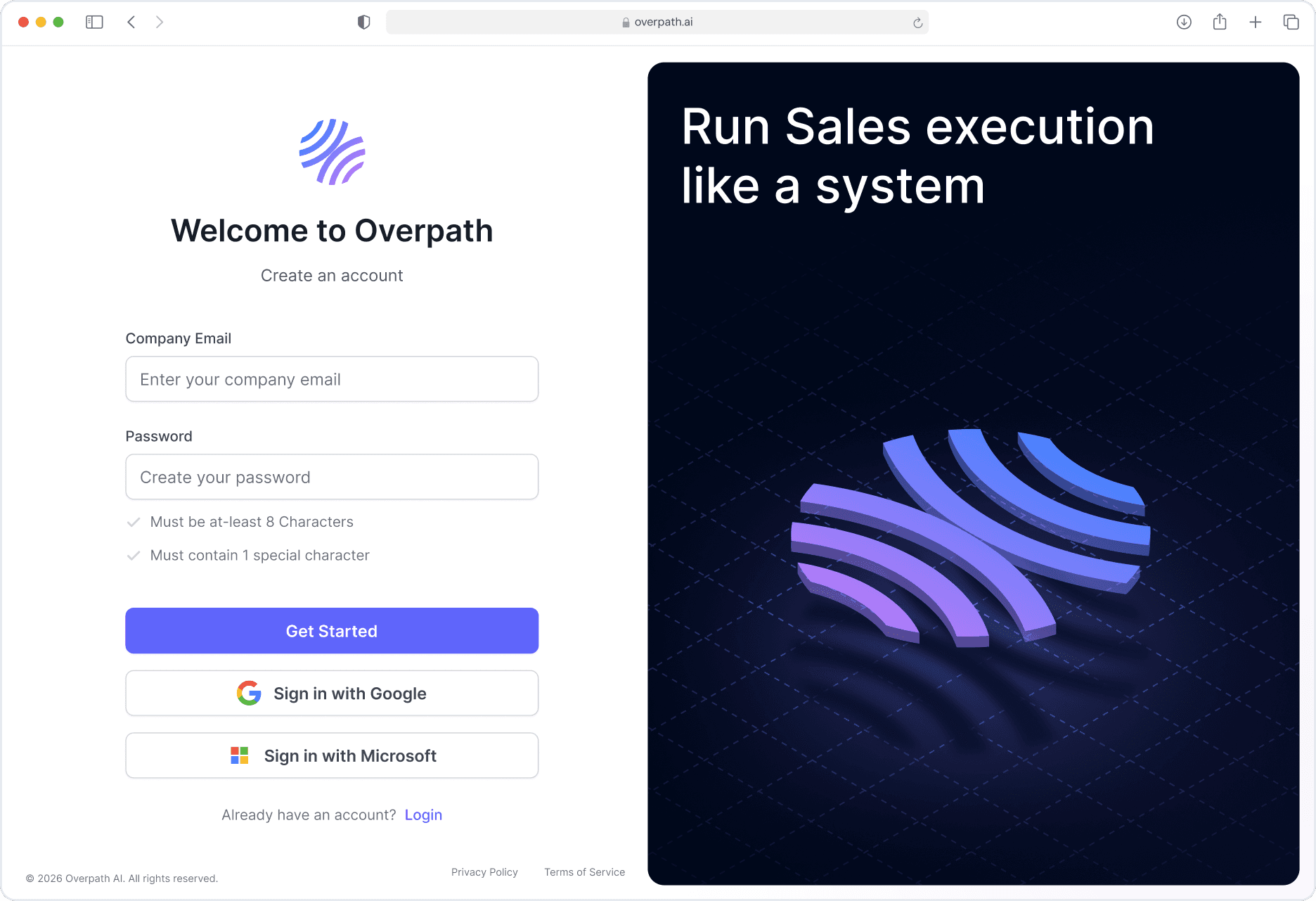
Open your browser and go to Overpath AI
Either Sign in using your Google / Microsoft account or with your email.
Navigate to Settings → Integrations.
Navigation to Communications and click Connect Google Chat
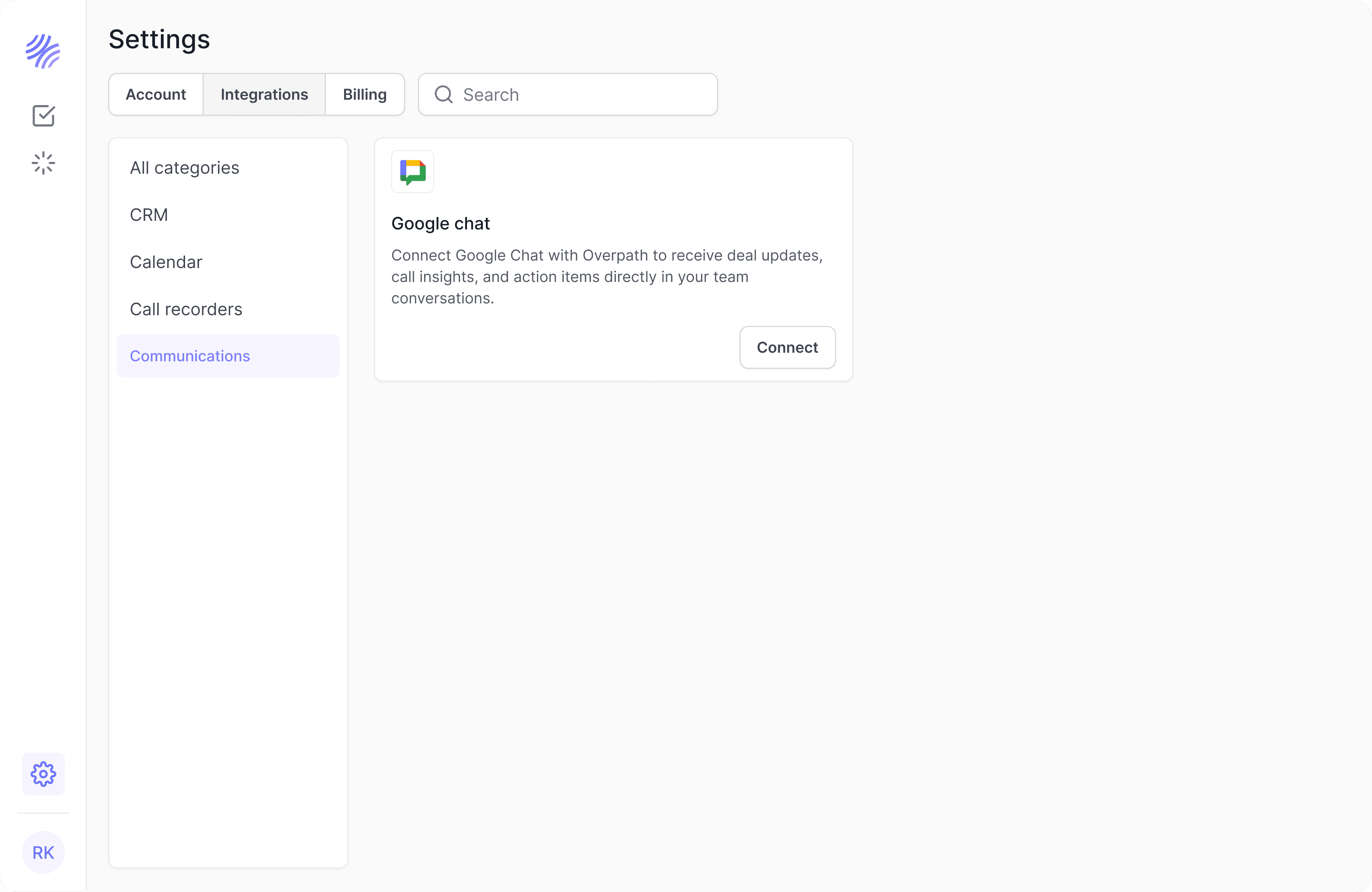
After clicking connect, you’ll be guided to set up Google Chat.
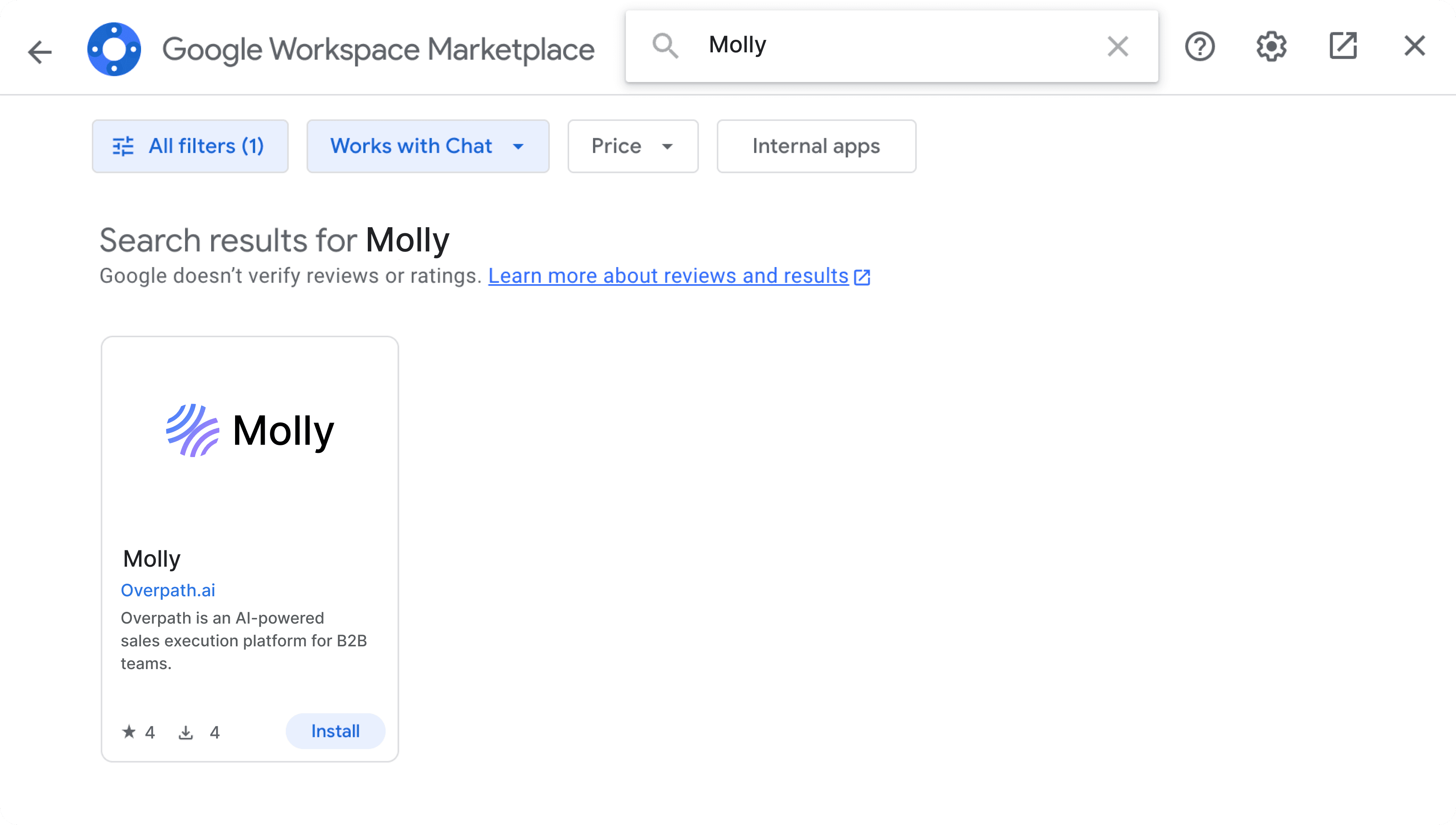
Search for “Molly” in the Google Chat Marketplace and install the app in your workspace.
Once installed:
Open Google Chat
Search for Molly
Send a “Hi” message to activate notifications
To confirm everything is set up correctly:
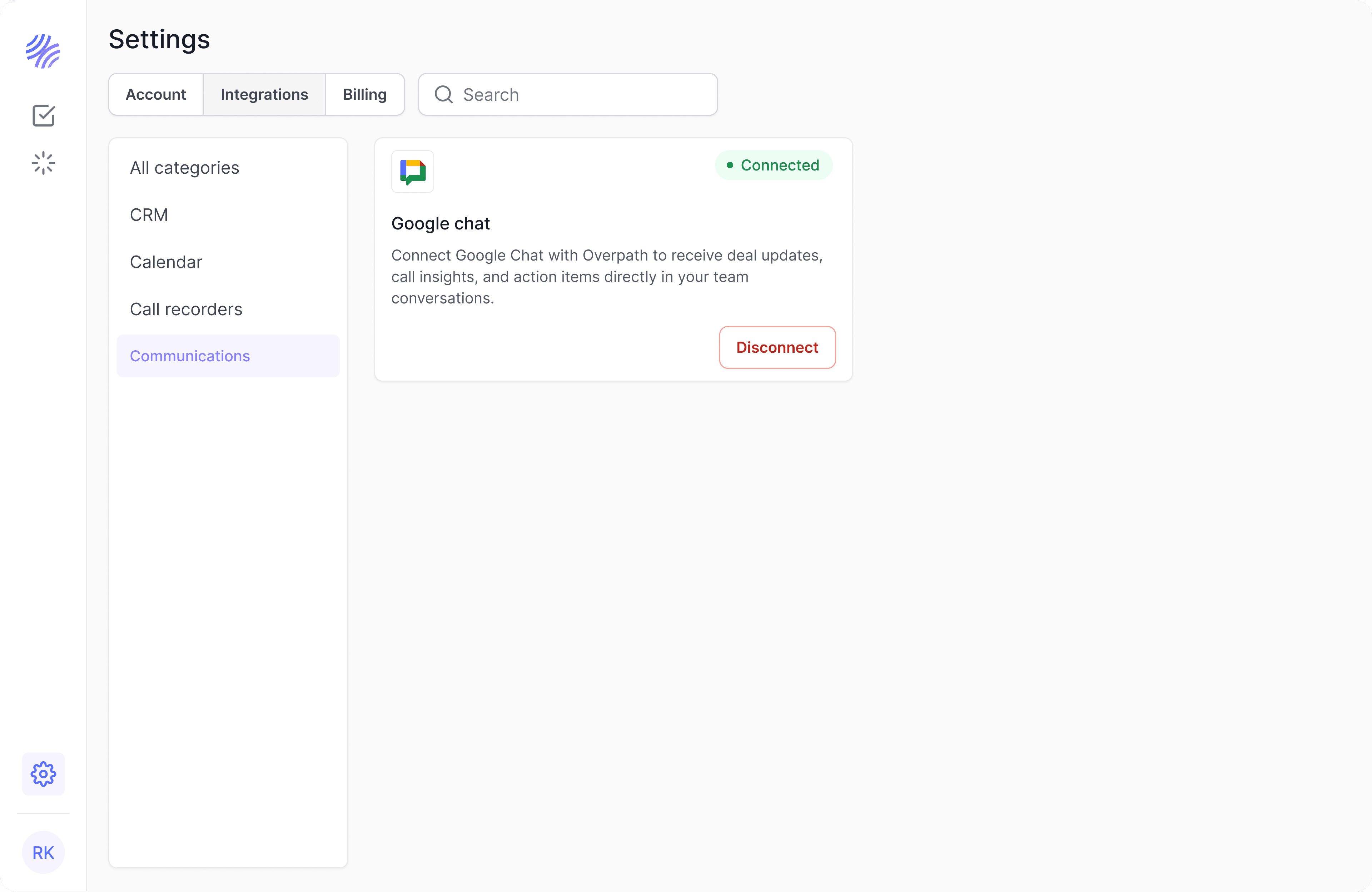
Go back to Settings → Integrations in Overpath AI.
Check that Google Chat appears under Connected Integrations.
The status should show Connected.
If you run into issues:
Log out and log back into both Overpath AI and Google chats.
Clear your browser cache and try again.
Clear your browser cache and try again.
Still stuck? Reach out to us at support@overpath.ai.


