Integrating Zoom with Overpath AI turns every meeting into actionable deal context, helping reps stay aligned and execute better before and after each call.
Follow the steps below to connect Zoom in just a few minutes.
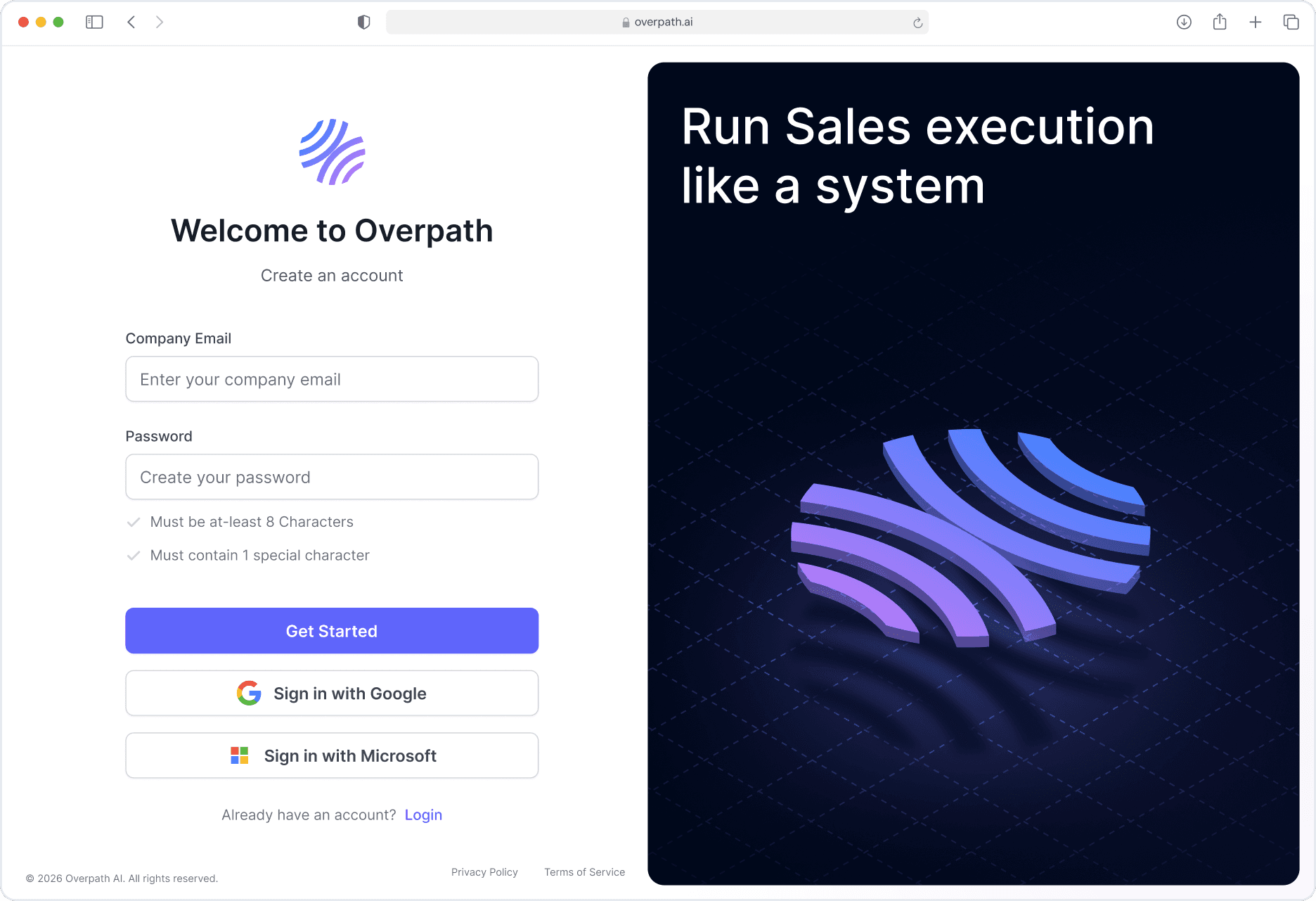
Open your browser and go to Overpath AI.
Either Sign in using your Google / Microsoft account or with your email.
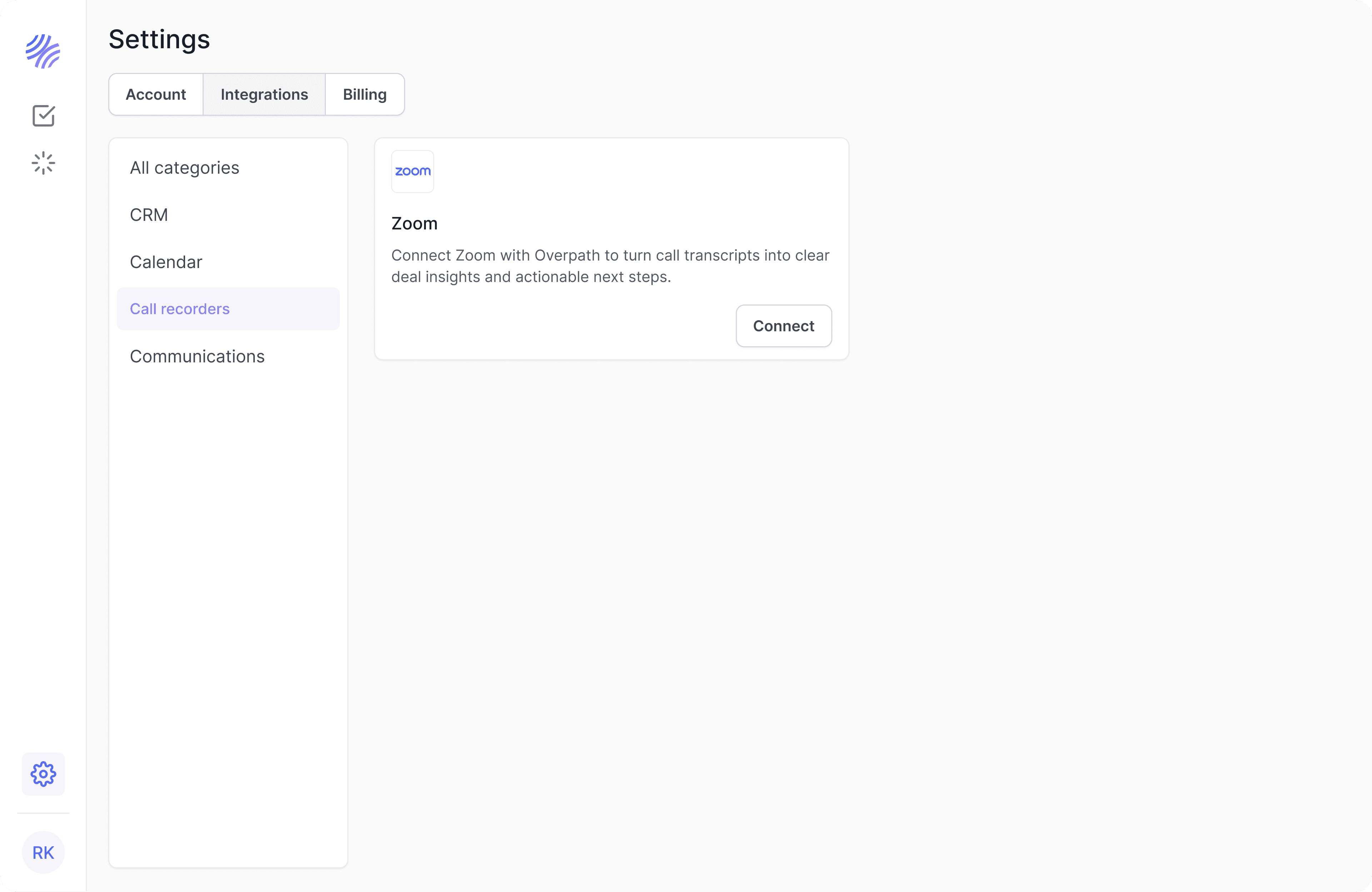
Navigate to Settings → Integrations.
Navigation to Call recorders and click Connect Zoom
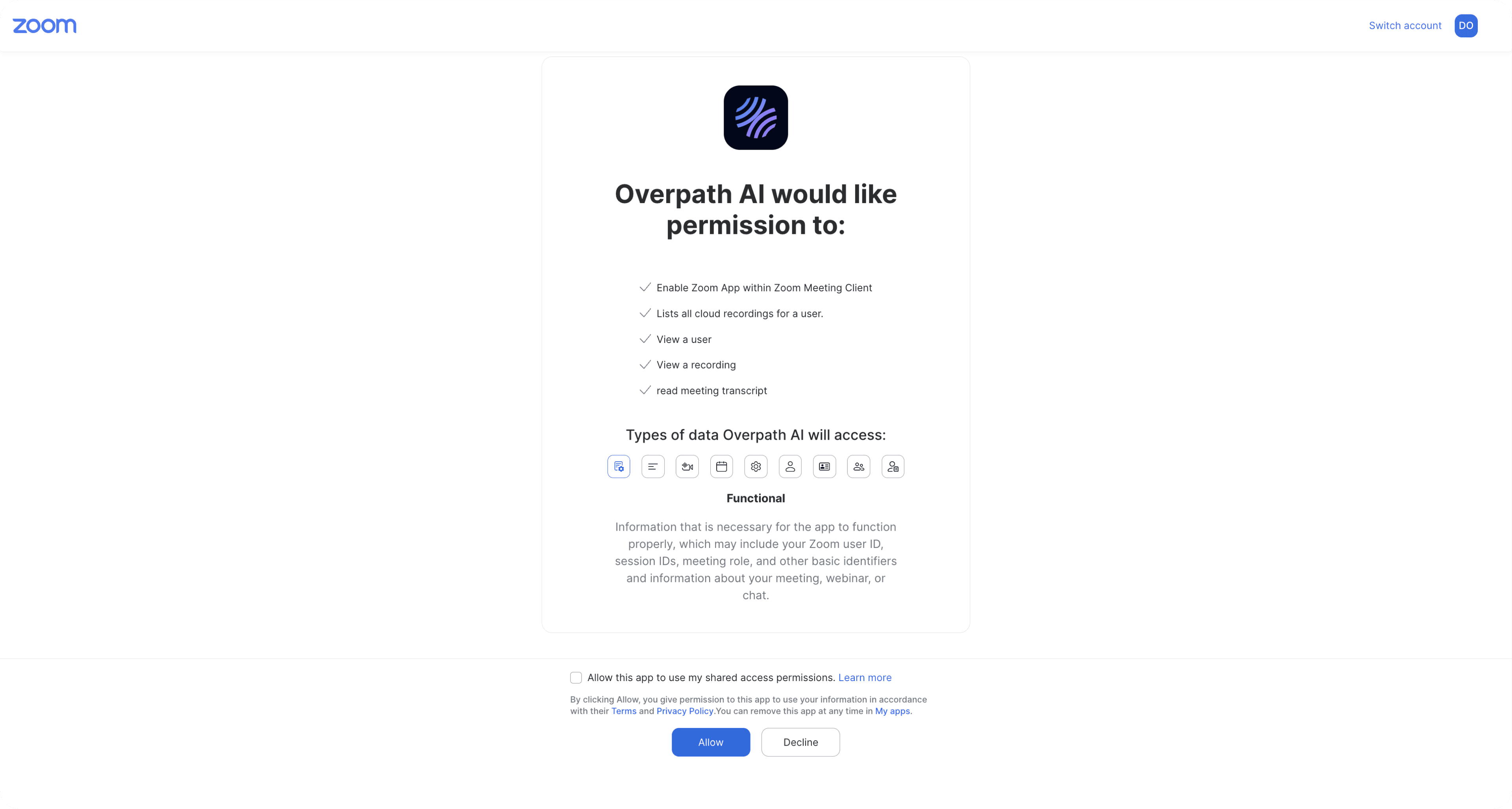
Review the permissions Overpath AI is requesting
(These are required to access recordings, transcripts, and meeting context)Click Allow to finish connecting Zoom with Overpath AI
To confirm everything is set up correctly:
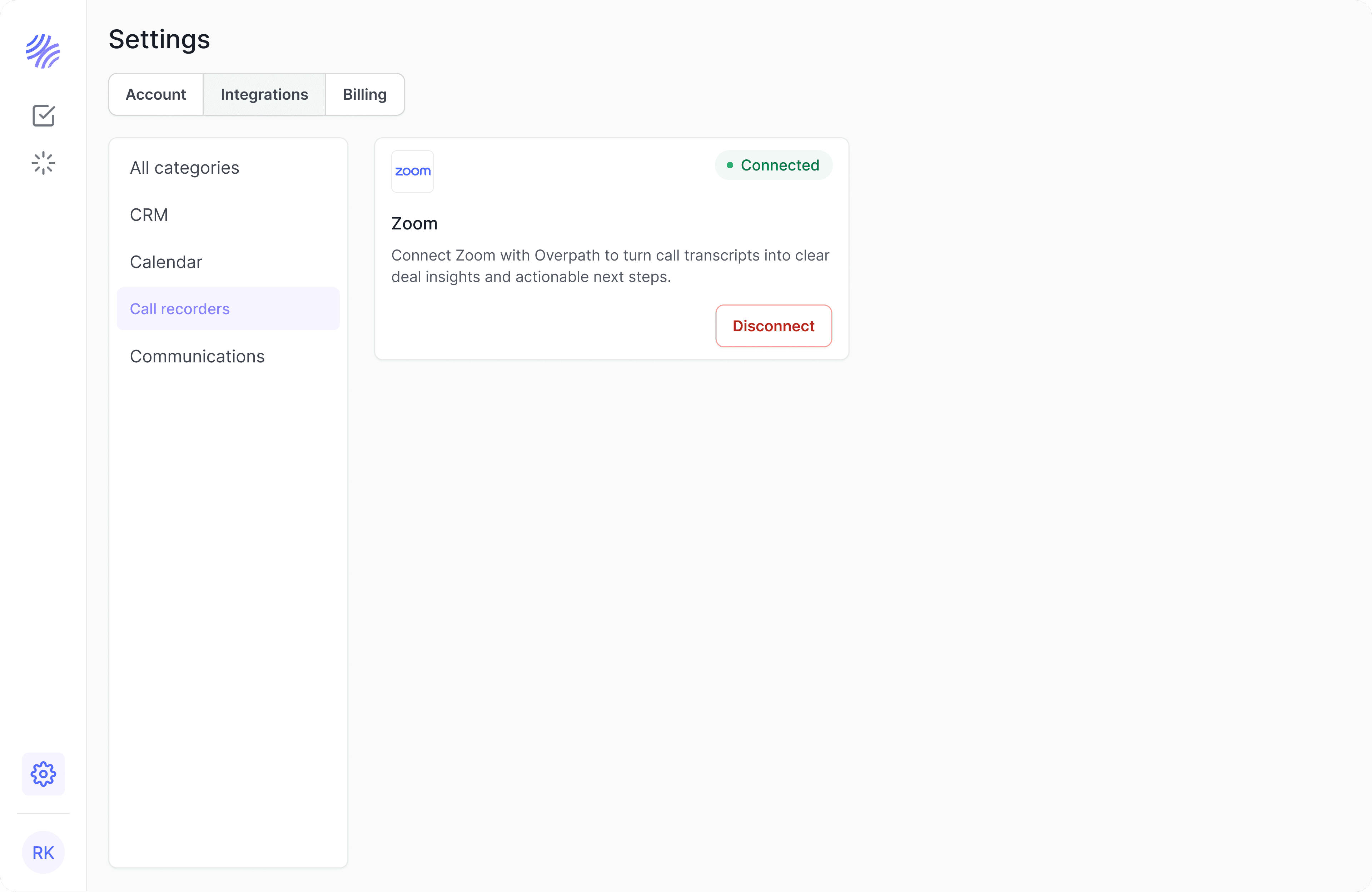
Go back to Settings → Integrations in Overpath AI.
Check that Zoom appears under Connected Integrations.
The status should show Connected.
If you run into issues:
Make sure you’re logged into the correct Zoom account (the one used for your meetings and recordings).
Ensure you have permission to authorize apps in Zoom (Admin access may be required for some workspaces).
Log out and log back into both Overpath AI and Zoom.
If prompted, re-authorize Overpath AI from the Zoom permissions screen.
Clear your browser cache and try again.
Still stuck? Reach out to us at support@overpath.ai.


